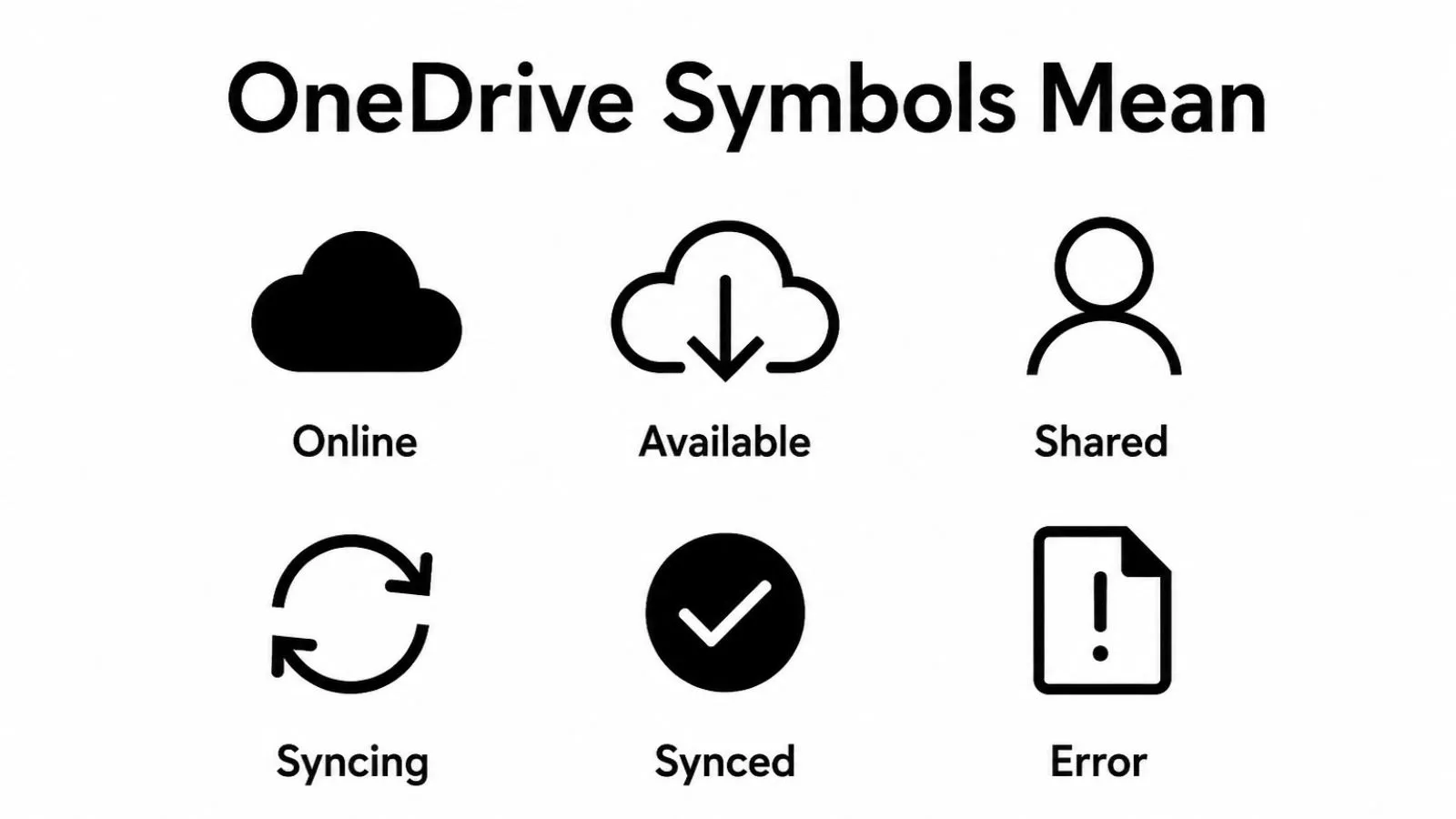
Have you ever wondered what the different OneDrive Symbols Mean when you open your files or folders?
These small icons may look simple, but they provide important information about your files, including whether they’re synced, stored online, shared, or need your attention.
This guide explains the meaning of each OneDrive symbol in clear, easy-to-understand language, helping you avoid confusion and manage your files with confidence.
By the end, you’ll know how to recognize common OneDrive icons, understand what they indicate, and troubleshoot any symbols that signal a syncing issue or require action.
What Symbol Represents OneDrive File Status?
The most important OneDrive symbol is the blue cloud icon, which represents files stored online only. Other common symbols include the green checkmark for synced files available offline, the blue circular arrows for syncing in progress, and the red X for sync errors. Together, these icons instantly show the current status of your files and folders.
What Are OneDrive Symbols?
OneDrive symbols are visual status icons that appear next to your files and folders in Windows File Explorer, the OneDrive app, and Microsoft 365 services.
These icons quickly tell you whether a file:
- Is stored online only
- Is available on your device
- Is currently syncing
- Has a sync problem
- Is shared with others
- Is marked to stay on your device
OneDrive Symbols Comparison Table
| Symbol | Main Meaning | Best Use |
| Blue Cloud | Online only file | Save storage space |
| Green Circle with White Check | Downloaded and available offline | Everyday work |
| Solid Green Circle with White Check | Always keep on this device | Important files |
| Blue Circular Arrows | Sync in progress | Monitor uploads/downloads |
| Red Circle with White X | Sync error | Troubleshooting |
| Gray X | File unavailable or sync issue | Check connection |
| Person Icon | Shared file or folder | Team collaboration |
| Blue Padlock | Private or restricted file | Secure documents |
| Pause Symbol | Sync paused | Temporary stop |
| Chain Link Icon | Shortcut to shared folder | Shared workspace |
| Cloud with Sync Badge | Cloud storage managed | Cloud organization |
| Warning Triangle | Needs attention | Resolve file issues |
Top OneDrive Symbols and Their Meanings
Blue Cloud: Online Only Files
The blue cloud icon is one of the most recognized OneDrive symbols.
Best for: Saving storage, laptops, cloud backups, large photo collections, archived documents
Green Circle with White Check: Available Offline
A green outlined circle with a white checkmark means the file has been downloaded to your device after you opened it.
Best for: School files, travel, remote work, frequently opened documents
Solid Green Circle: Always Keep on This Device
A solid green circle with a white checkmark means you have chosen “Always keep on this device.” T
This icon gives extra confidence because your important files remain available without an internet connection.
Best for: Business files, family photos, presentations, legal documents, important projects
Blue Circular Arrows: Sync in Progress
The blue circular arrows indicate that OneDrive is actively uploading or downloading files. This is a temporary symbol that usually disappears once syncing finishes successfully.
Large videos, slow internet connections, or many changed files may cause this icon to remain visible longer.
Best for: Tracking uploads, monitoring backups, checking synchronization progress
Red Circle with White X: Sync Error
The red X tells you something prevented OneDrive from syncing correctly. Common reasons include internet problems, insufficient storage, unsupported file names, or account issues.
Clicking the OneDrive icon usually provides more details so you can solve the problem quickly.
Best for: Identifying sync issues, troubleshooting file errors, protecting important data
Gray X: File Availability Issue
A gray X can appear when Windows temporarily cannot reach the file or when a sync problem exists. Unlike the red X, it may disappear automatically after reconnecting to the internet or restarting OneDrive.
It’s generally a temporary warning rather than a permanent problem.
Best for: Identifying temporary connection issues, checking cloud availability
Person Icon: Shared Files
The small person icon indicates that a file or folder has been shared with someone else. Depending on your permissions, collaborators may be able to edit, comment, or simply view the contents.
This symbol is especially useful for teamwork and family file sharing.
Best for: Team collaboration, family folders, shared projects, group assignments
Blue Padlock: Restricted Access
The blue padlock shows that a file or folder has limited permissions. Access may be restricted to certain users or protected by your organization’s security settings.
Although the file remains in OneDrive, not everyone can open or edit it.
Best for: Confidential documents, company records, private information, secure storage
Pause Symbol: Sync Paused
The pause icon appears when you have temporarily stopped OneDrive from syncing. This feature is useful when using slow internet, conserving bandwidth, or working on sensitive files before uploading changes.
Sync resumes automatically when you choose to restart it.
Best for: Managing bandwidth, temporary offline work, avoiding interruptions
Chain Link Icon: Shared Folder Shortcut
It helps organize shared workspaces without duplicating files.
Best for: Shared business folders, collaborative teams, project management
Cloud with Sync Badge: Managed Cloud Storage
Some enterprise or Microsoft 365 environments display cloud badges showing files managed through cloud storage policies.
These symbols help organizations distinguish cloud managed content from locally stored files.
Best for: Business environments, Microsoft 365 organizations, IT managed devices
Warning Triangle: Needs Attention
A yellow or orange warning triangle usually means OneDrive requires your attention.
Reviewing OneDrive notifications often resolves the problem quickly.
Best for: Preventing sync failures, checking account status, avoiding storage problems
Best OneDrive Symbols for Tattoos
Although OneDrive symbols are designed for technology rather than personal symbolism, a few minimalist icons could inspire modern tech themed tattoos.
Popular choices include:
- Blue cloud
- Cloud with checkmark
- Circular sync arrows
- Cloud outline
- Minimal checkmark
Small cloud tattoos may symbolize digital memories, lifelong learning, cloud careers, or personal organization.
Best OneDrive Symbols for Logos and Design
When designing cloud storage graphics, presentations, websites, or educational materials, simple symbols work best.
Good design choices include:
- Cloud icons
- Checkmarks
- Sync arrows
- Folder icons
- Share icons
- Upload and download arrows
These symbols communicate ideas quickly and remain easy to recognize at small sizes. Avoid copying Microsoft’s official logo exactly for commercial branding.
Best OneDrive Symbols for Personal Meaning
Although OneDrive icons are primarily functional, people sometimes attach personal meaning to them.
For example:
- Cloud: Keeping memories safe
- Green checkmark: Success or completion
- Sync arrows: Personal growth and continuous improvement
- Shared icon: Collaboration and teamwork
- Padlock: Privacy and security
These modern interpretations can inspire digital artwork, office décor, productivity journals, or technology themed gifts.
Before Using Microsoft or Technology Symbols
Many OneDrive symbols are part of Microsoft’s official interface and may be protected by trademark or copyright laws.
Before using these icons in logos, products, commercial artwork, or merchandise:
- Understand their original purpose.
- Avoid suggesting an official Microsoft partnership.
- Don’t modify or reproduce protected logos without permission.
Respecting intellectual property helps avoid confusion and legal issues.
How to Choose the Right Symbol for OneDrive
The best icon depends on what you are trying to communicate.
Consider these questions:
- Do you want to show cloud storage? Choose the cloud icon.
- Need to represent completed syncing? Use the green checkmark.
- Showing active file transfers? Pick sync arrows.
- Teaching troubleshooting? Include the red X or warning triangle.
- Designing educational graphics? Keep symbols simple and recognizable.
FAQs
What is the most important OneDrive symbol?
The blue cloud is the most recognized OneDrive symbol because it shows a file is stored online and doesn’t use local storage until opened.
What does the green checkmark mean in OneDrive?
A green checkmark indicates the file has been synced successfully and is available even without an internet connection.
What is a good OneDrive symbol tattoo?
A minimalist cloud or cloud with a checkmark works well for people who enjoy technology, cloud computing, or preserving digital memories.
Why does OneDrive show a red X?
A red X usually means a sync problem. Internet issues, storage limits, account errors, or unsupported file names are common causes.
What does the person icon mean?
The person icon shows that a file or folder has been shared with other people for viewing or collaboration.
What is the simplest OneDrive related symbol?
A plain cloud icon is the simplest and most universally recognized symbol associated with cloud storage and OneDrive.
Does the blue cloud mean my file is safe?
Yes. The blue cloud indicates the file is stored in OneDrive’s cloud storage.
Can OneDrive symbols change?
Yes. The same file may display different symbols depending on whether it’s syncing, stored locally, available offline, or experiencing an error.
Final Thoughts
Understanding OneDrive symbols makes using Microsoft’s cloud storage much easier.
Instead of guessing what each icon means, you can quickly tell whether your files are synced, stored online, shared, or need attention.
Once you become familiar with these symbols, managing your documents becomes faster, more organized, and far less confusing.

Ethan Caldwell is an experienced American author at BlogShubb. He specializes in technology, online platforms, and digital trends. His well-researched articles make complex topics easy to understand and provide readers with clear, practical, and reliable information.
 Owen Bradford
 Dylan Prescott